 Kiwi Code Docs
TUI Reference
Full-screen Textual TUI — the primary interactive interface for Kiwi Code.
TUI Reference
The kiwi command launches the full-screen Textual TUI — the primary interactive interface for Kiwi Code. It gives you a rich terminal experience with chat, file attachments, slash commands, and real-time streaming.
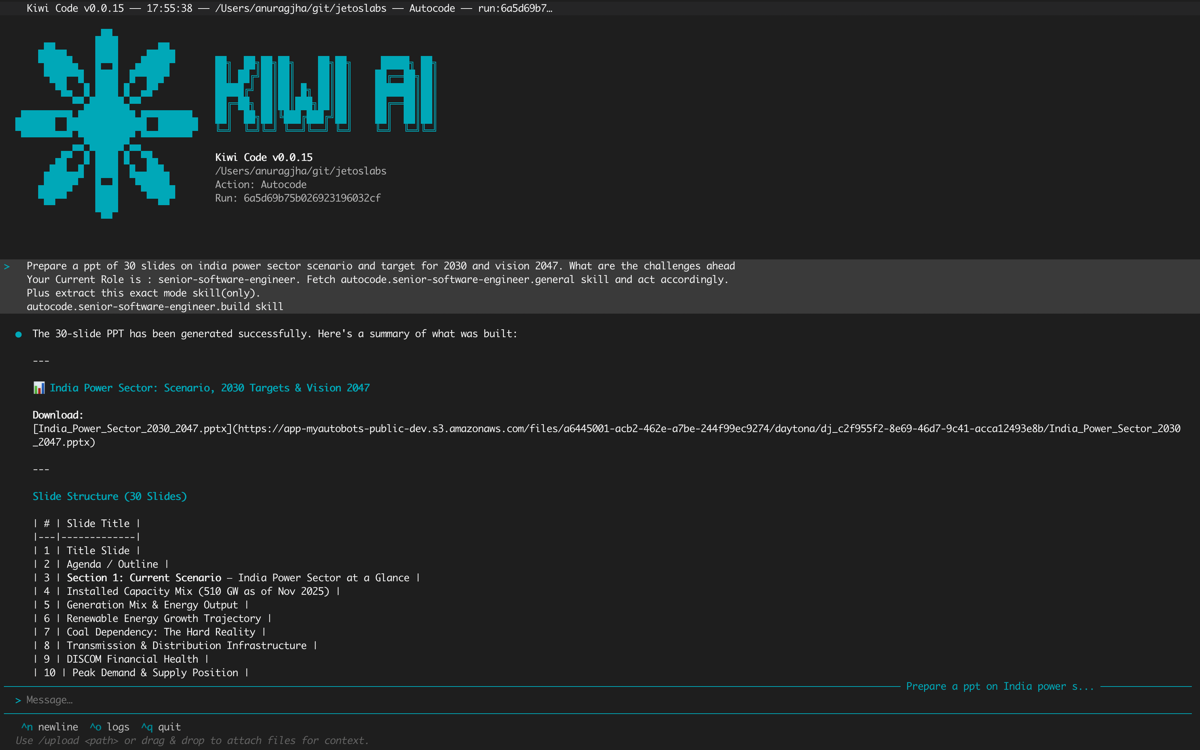
Launching
# Default — production server, restricted scope
kiwi

# Full filesystem access
kiwi --scope full

# Isolated git worktree
kiwi -w my-experiment

# Extra allowed directories (restricted mode)
kiwi --allow /tmp --allow /var/log
CLI Flags
| Flag | Description | Default |
|---|---|---|
--server | Server preset (app) or full URL | app |
--scope | Runtime scope: restricted or full | restricted |
--allow PATH | Additional allowed directory (repeatable) | — |
-w, --worktree NAME | Create/reuse an isolated git worktree | — |
--terminal | Run in plain terminal mode instead of TUI | — |
--action-id ID | Start fresh conversation for given action | — |
--run-id ID | Continue an existing run | — |
--json | Machine-readable JSON output (terminal mode) | — |
--version | Show version and exit | — |
Screens
Login Screen
The first screen you see if not authenticated.
- ASCII art Kiwi logo
- Server, scope mode, and working directory displayed
- Email and password fields with masked input
- After login, transitions automatically to the dashboard
Dashboard (Main Chat)
The primary interface where you interact with the AI.
Layout:
| Area | Description |
|---|---|
| Chat area | Scrollable message history — user messages on the right, assistant responses on the left |
| Input bar | Multi-line text input with slash command autocomplete, @ file picker, and history navigation |
| Pending files bar | Shows attached files waiting to be sent with your next message |
| Status bar | Current action name, run ID, and processing status ("Thinking", "Analyzing", etc.) |
Features:
- Real-time streaming — AI responses appear word-by-word as they're generated
- Markdown rendering — code blocks, lists, tables, and formatting
- Message history — scroll back through the full conversation
- Status indicators — shows when the AI is thinking, reasoning, or executing commands
Help Screen
Press Ctrl+G or type /help to open the slash command browser.
- Lists all slash commands organized by category
- Arrow keys to navigate, Enter to copy a command to clipboard
Ckey to copy the highlighted commandEscapeto close- Category headers (Session, Files, Checkpoints, etc.) are visually separated
File Browser
Type /upload or use Ctrl+U to open the file browser.
- Navigate your filesystem with arrow keys
- Directories are entered (navigated into)
- Files are selected and attached to your next message
- Filter by typing to narrow results
- Multiple files can be selected in one session
Runtime Logs
Press Ctrl+O or type /show-logs to view live output from your kiwi-runtime process.
- Real-time streaming of command output
- Color-coded: green for success, red for errors, grey for status
- Shows every command the AI executes and its result
- Interactive mode: when the AI runs an interactive command (e.g.,
npm login), you can type input directly here Ctrl+Kto interrupt a running interactive command
Runtime Cleanup
When you quit (Ctrl+Q), Kiwi Code shows a cleanup prompt.
- Lists all running runtimes with their run IDs and names
- Choose which to terminate or keep running
- Runtimes left running survive and can be reconnected later
Command Result Modal
When a slash command produces output (like /status or /actions list), it appears in a scrollable modal.
- Formatted output with syntax highlighting
- Scrollable for long results
Escapeto dismiss
ID Picker
Used by /rewind and other commands that need you to select from a list.
- Tabular display with columns
- Arrow keys to navigate, Enter to select
- Search/filter support
Chat Input Features
Slash Command Autocomplete
Type / to see command suggestions. The autocomplete shows matching commands as you type. Press Tab to accept the suggestion.
See Slash Commands for the full list.
@ File Picker
Type @ at the start of the input to open an inline file picker:
- Shows files and directories in your current working directory
- Filter by typing after
@ - Arrow keys to navigate, Enter to select
- Directories are entered (navigated into)
- Files are attached to your next message
Drag-and-Drop
Paste file paths from your terminal's drag-and-drop. Kiwi Code detects valid file paths and automatically attaches them.
History Navigation
Press ↑/↓ when the cursor is at the top or bottom of the input to navigate through your message history.
Multi-line Input
The input supports multi-line text. Press Enter to send, Shift+Enter for a newline.
Keyboard Shortcuts
| Shortcut | Action |
|---|---|
Ctrl+G | Open command picker (browse all slash commands) |
Ctrl+O | Open runtime logs |
Ctrl+Q | Quit Kiwi Code |
Ctrl+L | Log out |
Ctrl+U | Open file browser |
Ctrl+Shift+C | Copy selected text |
Ctrl+K | Interrupt interactive command (in runtime logs) |
Escape | Clear partially-typed slash command / close modal |
↑ / ↓ | Navigate message history (at input boundaries) |
Tab | Accept slash command autocomplete suggestion |
Enter | Send message |
Shift+Enter | Newline in input |
Status Bar
The status bar at the bottom of the screen shows:
| Element | Example | Description |
|---|---|---|
| Action name | AutoCode | The current AI action/model |
| Run ID | run_abc123 | The current conversation ID |
| Processing status | Thinking… | What the AI is currently doing |
| Runtime status | ⚡ | Runtime connected indicator |
Status indicators you may see:
- Thinking — AI is processing your request
- Reasoning — AI is working through a complex problem
- Analyzing — AI is examining code or data
- Executing — AI is running a command on your machine
- Streaming — AI response is being received
Themes
Kiwi Code supports Textual themes. Use /theme list to see available themes and /theme set <name> to switch.
The default theme is kiwi-black.
See Slash Commands — Theme for details.
Worktree Mode
Launch Kiwi in an isolated git worktree:
kiwi -w my-experimentThis creates a separate working directory under .kiwi/worktrees/ where the AI can make changes without affecting your main working tree. See Worktree Mode for details.