 Kiwi Code Docs
Interactive Mode
How Kiwi Code handles commands that need your input — no more stalled terminals or manual workarounds.
Interactive Mode
Some terminal commands need your input — login prompts, password entry, OAuth flows, confirmation dialogs. Most AI coding tools can't handle these. They stall, time out, or force you to open a separate terminal and run the command yourself.
Kiwi Code solves this with interactive mode. The agent runs the command on your system, hands control to you for the interactive part, and resumes automatically once you're done.
The Problem
When an AI agent runs a command like npm login or gh auth login, the command pauses and waits for user input:
$ gh auth login
? What account do you want to log into?  ← waiting for you
In most AI coding tools, this is a dead end. The agent can't provide input, the command hangs until it times out, and you're left to:
- Open a new terminal
- Copy the command
- Run it manually
- Complete the prompts
- Go back and tell the agent to continue
Kiwi Code eliminates this entire back-and-forth.
How It Works
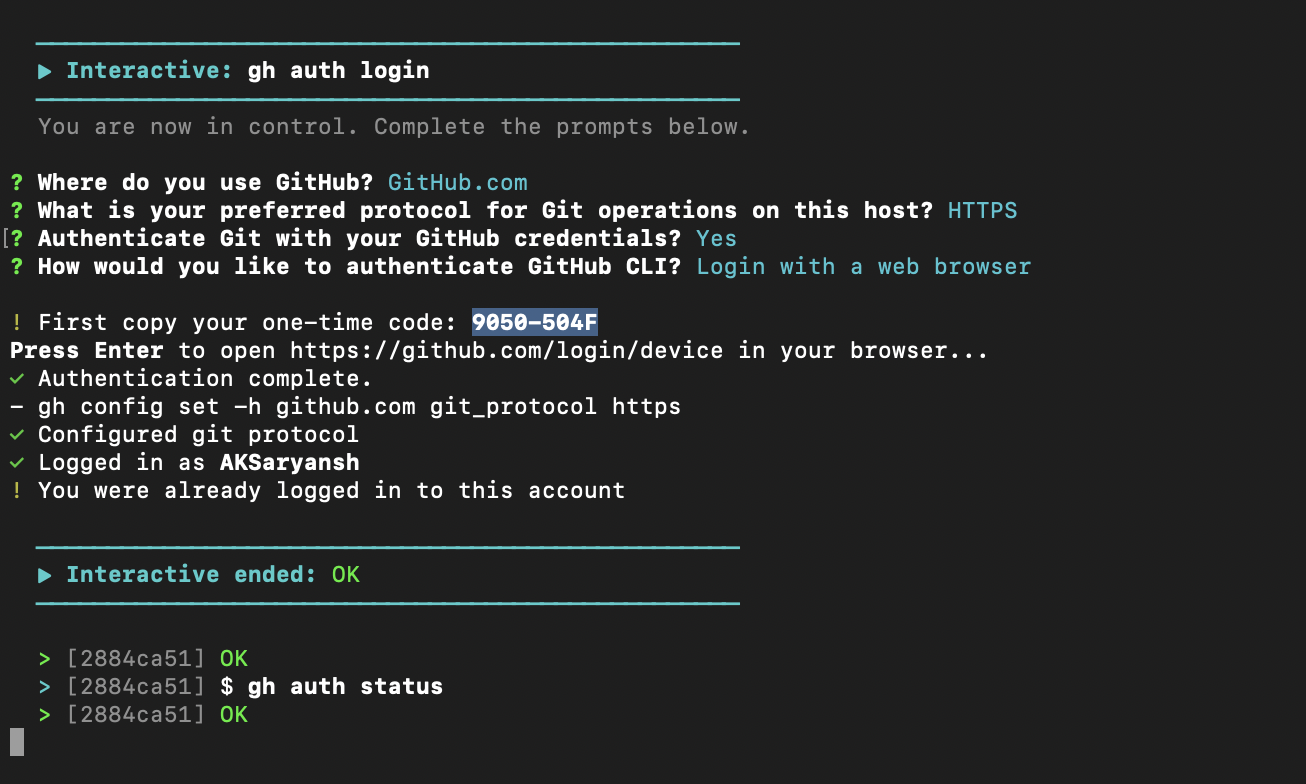
When the agent needs to run an interactive command, it sends it to your terminal — the same terminal where your Kiwi runtime is running. You see the prompts, type your responses, and once the command finishes, the agent picks up right where it left off.
Agent: "I'll run gh auth login so you can authenticate with GitHub."
       ↓
       [Command runs on your terminal]
       ? What account do you want to log into? GitHub.com
       ? How would you like to authenticate? Login with a web browser
       ✓ Authentication complete.
       ↓
Agent: "Authentication successful. Now I'll push your changes..."
No new terminal. No copy-paste. No manual follow-up. The agent waits, you interact, and work continues.
For CLI / TUI Users
If you're using the TUI (kiwi), interactive commands appear in the Runtime Logs screen.
The agent tells you it needs your input
The agent will let you know before running an interactive command. You'll see a message like:
"I need to run
npm login— this requires your input. Please switch to the runtime logs."
Open Runtime Logs
Press Ctrl+O or type /show-logs to open the runtime logs screen.
Interact with the command
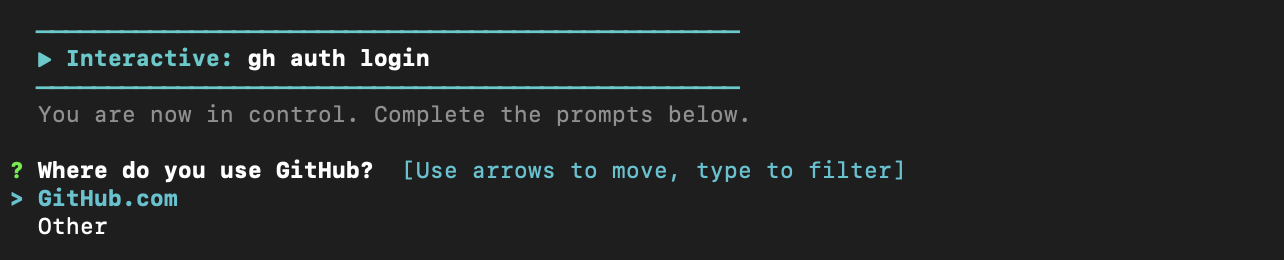
The command's prompts appear in the logs. Type your responses directly — passwords, selections, confirmations — just like a normal terminal.
The agent resumes
Once the command exits, the agent detects it completed and continues with the next step. You can close the logs and return to the chat.
Need to cancel?
Press Ctrl+K while in the runtime logs to interrupt a running interactive command.
For Web Users
If you're using the web dashboard, interactive commands run in the terminal where you started kiwi-runtime connect.
The agent tells you to check your terminal
The agent will say something like:
"I'm running an interactive command on your terminal. Please switch to the terminal where
kiwi-runtimeis running."
Switch to your runtime terminal
Go to the terminal window where you ran kiwi-runtime connect. The interactive prompts are waiting there.
Complete the prompts
Type your responses, passwords, or selections as needed.
Return to the web dashboard
Once the command finishes, the agent continues in the web dashboard automatically. No need to tell it you're done.
When Interactive Mode Is Used
The agent automatically uses interactive mode for commands that need your input. Common examples:
| Command | What it needs from you |
|---|---|
gh auth login | GitHub account, authentication method, browser login |
npm login | npm username, password, email, OTP |
gcloud auth login | Google account, browser-based OAuth |
ssh-keygen | Key path, passphrase, confirmation |
docker login | Registry, username, password/token |
aws configure | Access key, secret key, region, output format |
git commit (with signing) | GPG passphrase |
You don't need to tell the agent to use interactive mode — it detects when a command will need input and handles it automatically.
How It Differs from Regular Commands
| Regular Command | Interactive Command | |
|---|---|---|
| Execution | Runs in the background | Runs on your terminal |
| Your involvement | None — agent handles everything | You provide input when prompted |
| Agent behavior | Reads output and continues | Waits for command to finish, then continues |
| Where you see it | Chat output (if agent shares it) | Runtime logs (TUI) or runtime terminal (web) |
Why This Matters
Interactive mode removes one of the biggest friction points in AI-assisted development. Without it, every authentication flow, every login, every password prompt becomes a manual detour. With it, the agent can handle end-to-end workflows — including the parts that need you — without breaking stride.
It's the difference between:
- Without interactive mode: Agent tries → stalls → you intervene manually → you tell agent to continue → agent resumes
- With interactive mode: Agent runs → you respond to prompts → agent continues
One flow. No detours.